Keyboard Position
Keep your keyboard close to your body—about 4–6 inches from the desk edge. Your elbows should form a 90-degree angle, and wrists should be neutral (not bent up or down). Use a keyboard tray if needed.
Configure your desk, chair, monitor, and lighting for comfortable, sustainable work.
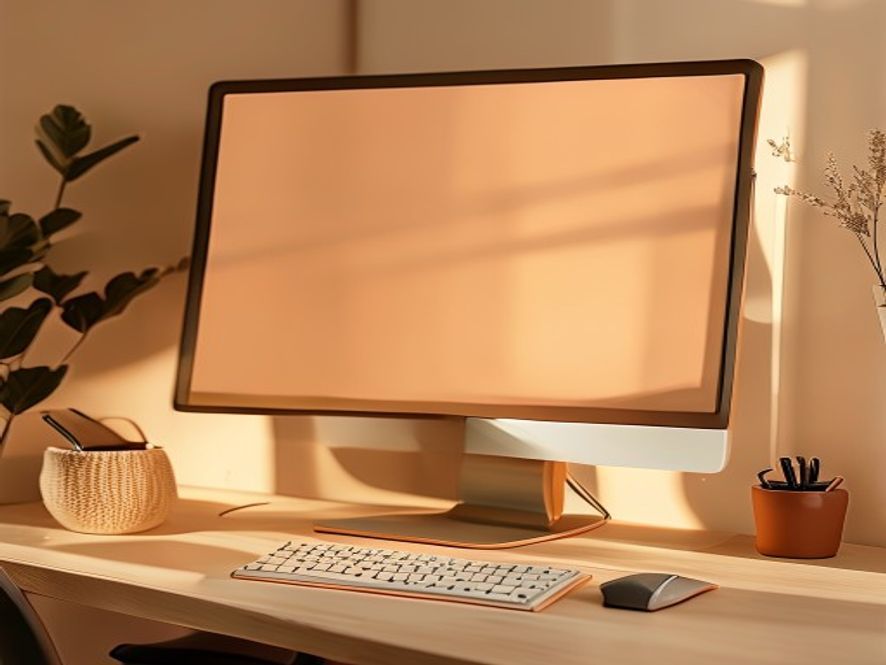
Your monitor height directly affects neck strain. Position the top of your screen at or slightly below eye level, about an arm's length away (24–30 inches). If using multiple monitors, center the primary one and angle secondary screens slightly.
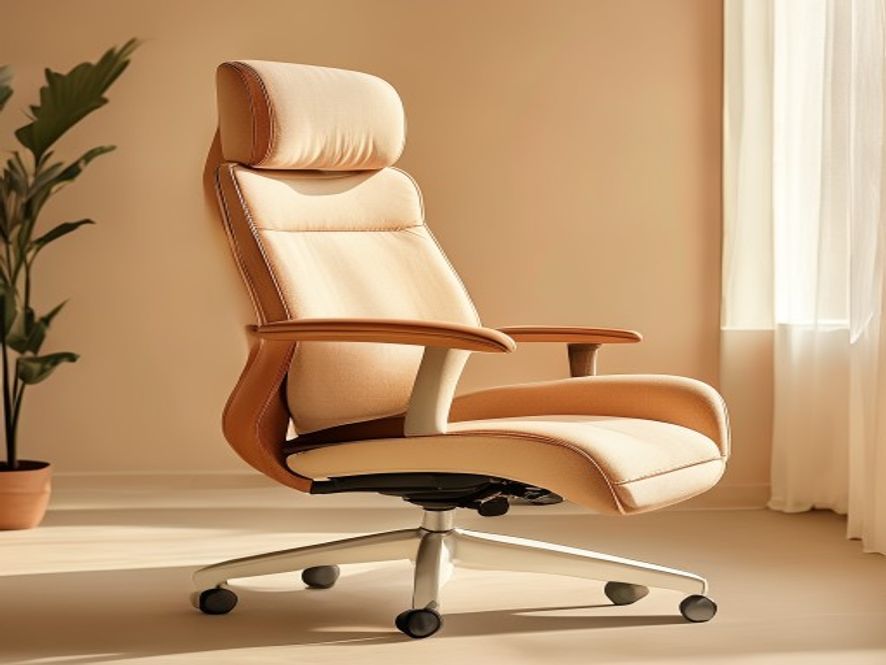
Your chair is foundational. Look for adjustable height, lumbar support, and armrests. Sit with your hips slightly higher than your knees, feet flat on the floor or footrest. Your lower back should feel supported without being pushed forward.
Keep your keyboard close to your body—about 4–6 inches from the desk edge. Your elbows should form a 90-degree angle, and wrists should be neutral (not bent up or down). Use a keyboard tray if needed.
Position your mouse at the same height as your keyboard, close to your body. Keep your forearm parallel to the ground. A mouse pad with wrist support can reduce strain during extended use.
Frequently used items (phone, documents) should be within arm's reach at eye level or below. Minimize reaching and turning. Keep your desk surface clutter-free to reduce visual fatigue.
If using a laptop, elevate it on a stand and add an external keyboard and mouse. Laptop screens are typically too low when placed on a desk, leading to forward head posture over time.
Good lighting reduces eye strain and fatigue. Ideally, use a combination of natural light and task lighting. Position your desk perpendicular to windows to minimize glare on your screen. Add a desk lamp with adjustable brightness for focused work areas.
Position your workspace to benefit from windows without creating screen glare. Morning and midday light supports alertness and mood.
Add a desk lamp for focused work. Position it to the side to avoid casting shadows on your work surface. Choose bulbs with warm color temperature (2700–3000K).
Use anti-glare filters, monitor hoods, or matte screen protectors if needed. Adjust window blinds to control direct sunlight. Take regular screen breaks to rest your eyes.
Consider blue light filtering glasses for evening work. Reduce screen brightness in dim environments. This helps maintain natural sleep rhythms.
| Element | Guideline | Status |
|---|---|---|
| Monitor Height | Top of screen at or slightly below eye level | ☐ Checked |
| Monitor Distance | 24–30 inches from your eyes | ☐ Checked |
| Chair Height | Hips slightly higher than knees | ☐ Checked |
| Lumbar Support | Back support at natural lower back curve | ☐ Checked |
| Keyboard Position | Close to body, elbows at 90 degrees | ☐ Checked |
| Mouse Placement | Same height as keyboard, within arm's reach | ☐ Checked |
| Desk Lighting | Natural light + task lamp, minimal glare | ☐ Checked |
| Feet Position | Flat on floor or footrest | ☐ Checked |
Book a consultation for personalized workspace assessment and ergonomic recommendations.
Schedule Assessment